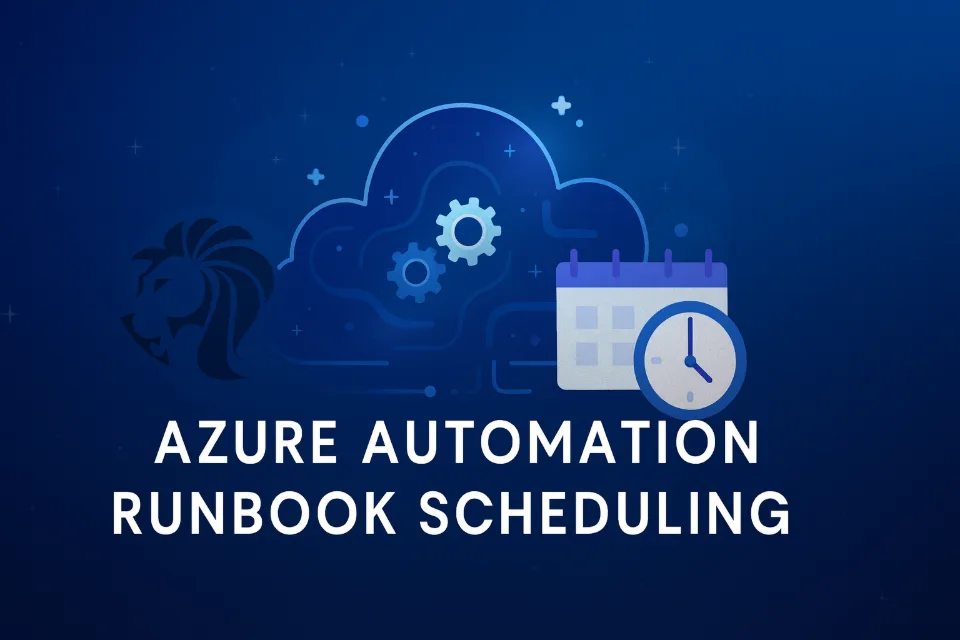
Automate Your Azure Like a Pro: Create an Automation Account + Scheduled Runbook
Automation in Azure isn’t just a luxury — it’s a superpower. Whether you're managing resources, rotating secrets, running reports, or cleaning up unused resources, automating these repetitive tasks frees up time and reduces human error.
In this post, we'll show you how to:
✅ Create an Automation Account
✅ Write your first Runbook (with PowerShell)
✅ Schedule it to run automatically
Step-by-Step Guide
Step 1: Create an Automation Account
- Log into the Azure Portal
- Search for “Automation Accounts”
- Click “+ Create”
- Select your Subscription and Resource Group
- Choose a name (e.g.,
Alcaeus-AutoAccount) - Select a region (close to your workload)
- Under Managed Identity, turn “System-assigned” ON – this is key for secure resource access
- Click Review + Create, then Create
Step 2: Create a PowerShell Runbook
- In your Automation Account, go to “Runbooks”
- Click “+ Create a Runbook”
- Give it a name (e.g.,
Start-MyVMs), select PowerShell, and click Create - Add your script, for example (below) & Click “Publish” when ready
$vmList = @("vm-name-1", "vm-name-2")
$resourceGroup = "YourResourceGroup"

foreach ($vm in $vmList) {
    Start-AzVM -Name $vm -ResourceGroupName $resourceGroup
}
Step 3: Schedule the Runbook
- Go to your Runbook and click “Link to Schedule”
- Click “+ Add a schedule”
- Define your schedule:
- Name:
StartVMsDaily - Recurrence: Daily, Weekly, Hourly, etc.
- Time zone-aware settings
- Name:
- Save and link it
Security Tip
Enable System-assigned Managed Identity and grant it only minimum required RBAC permissions (e.g., Virtual Machine Contributor for managing VMs).
What’s Next?
This is just the start. In the next post, we’ll walk through automating VM shutdowns, integrating email notifications, and log retention strategies.
📌 Follow us for more Azure scripting tips!
Need help building secure and scalable automation in Azure? Contact Alcaeus – your partner in reliable cloud operations.